PlcConsole
Remote Manual · Access

Getting started and account security

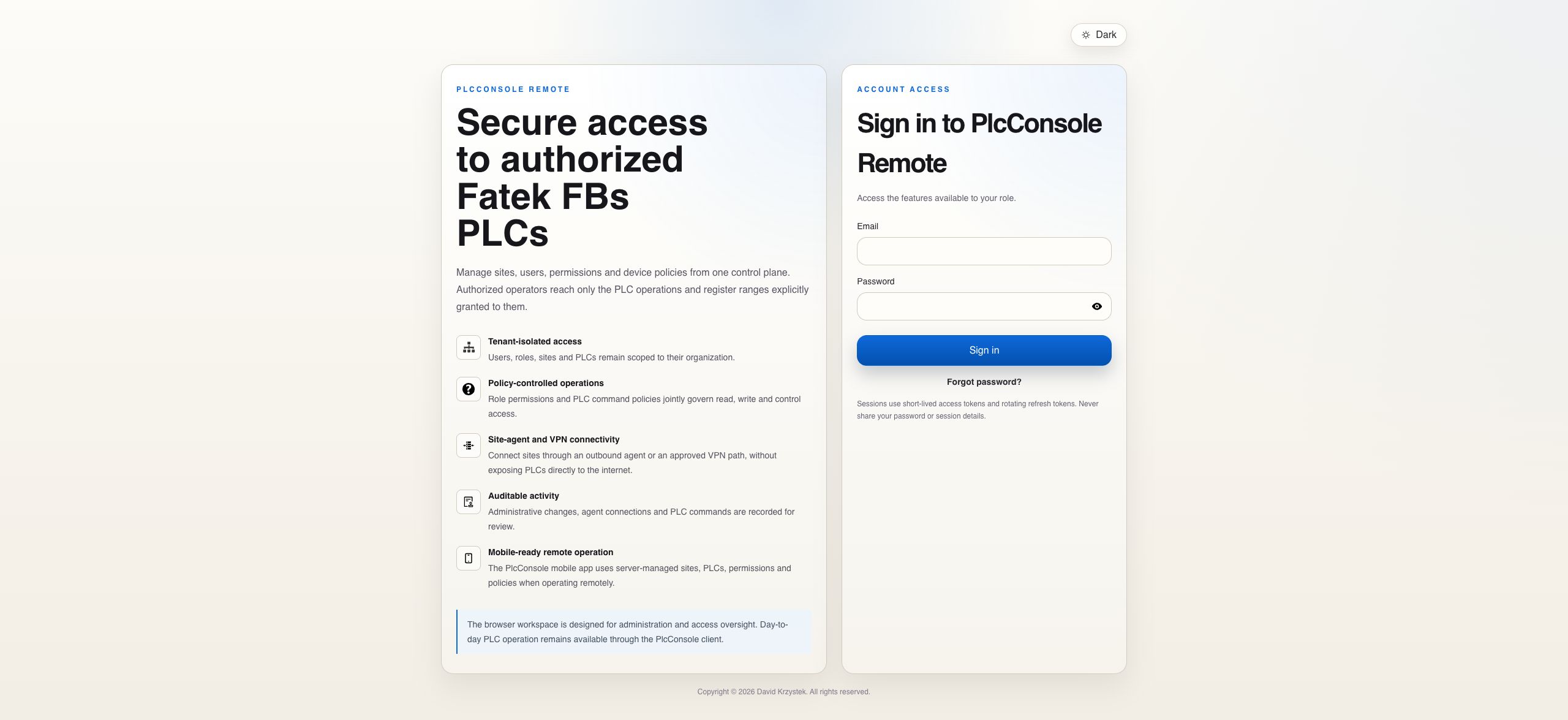
Sign in, confirm the active tenant context and use the appropriate password workflow.

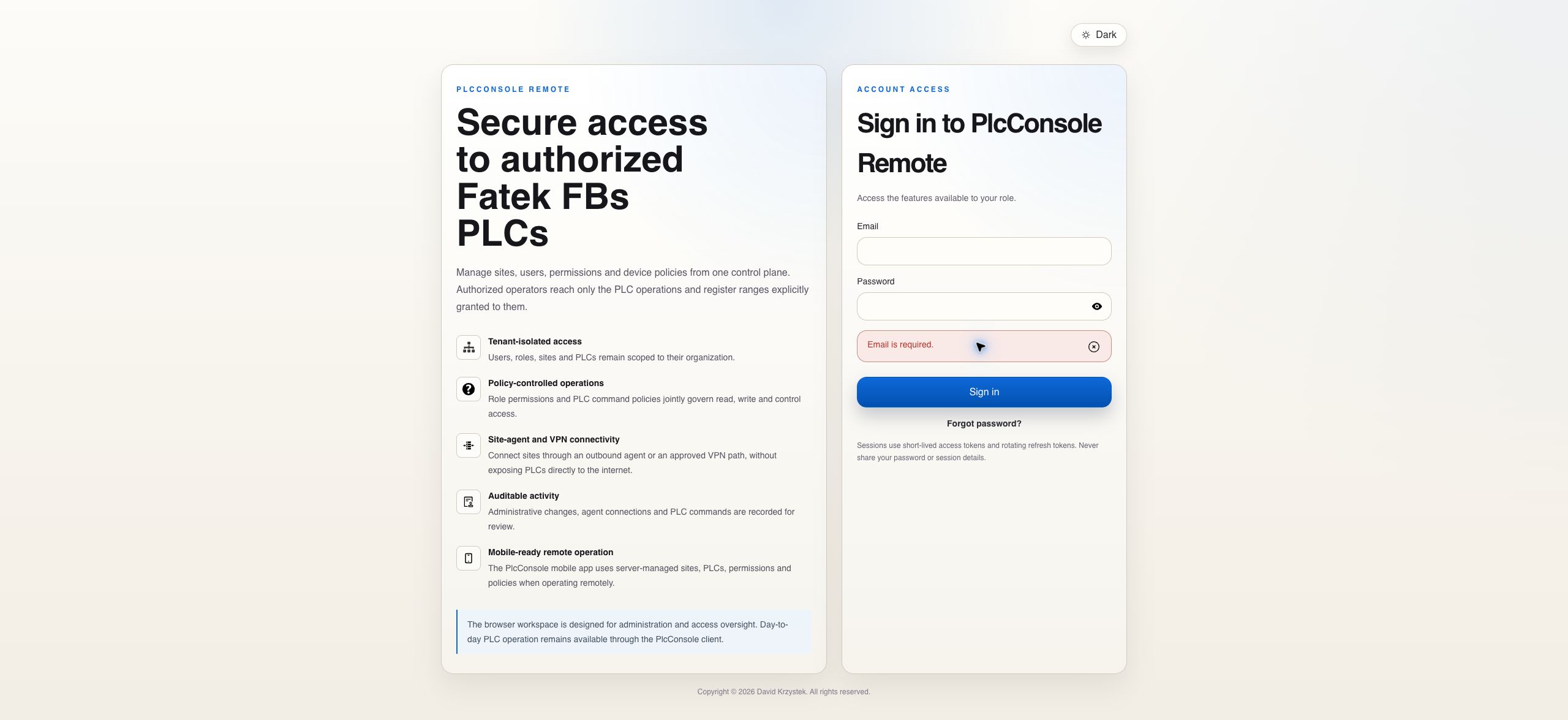
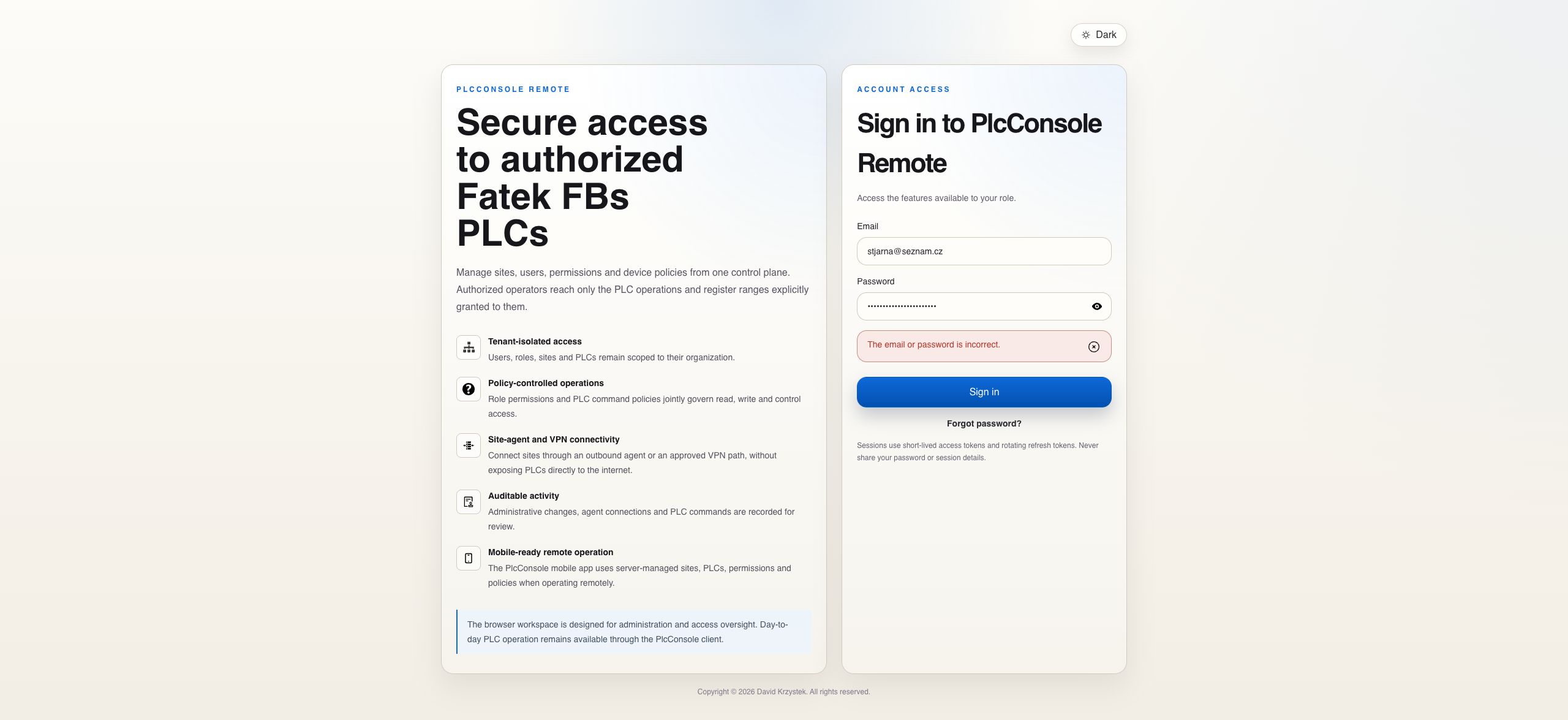
Sign In

Enter through the account boundary

Human users authenticate with email and password. The resulting session determines the tenant, role and resources visible to the browser and mobile client.

Active Context

Confirm tenant, user and role before making changes

The header identifies the signed-in user and effective role. A platform administrator sees an additional Acting on behalf of line only after entering a tenant context. Tenant-scoped screens then operate against that tenant’s sites, PLCs, people and policies.

If the displayed context is unexpected, return to the tenant directory before creating, editing or archiving records.

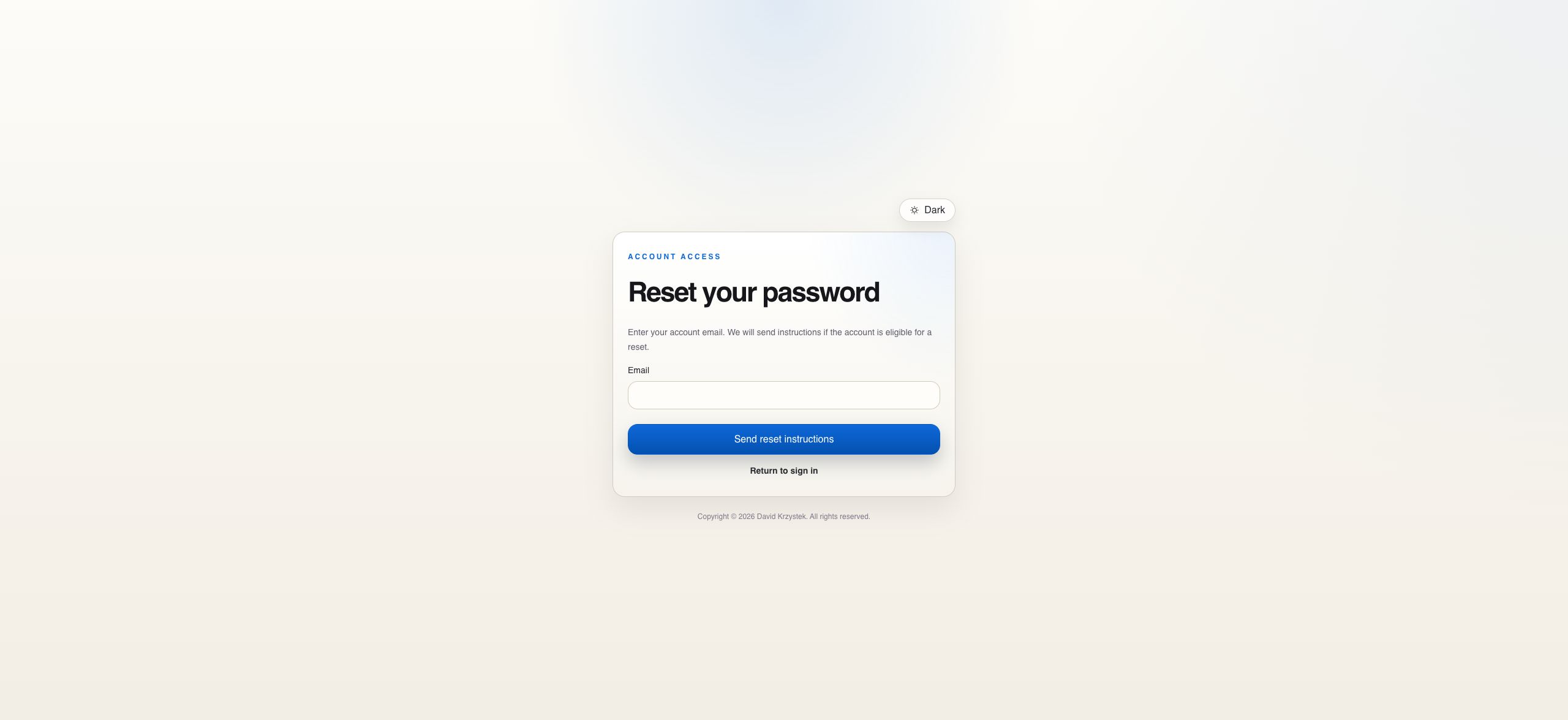
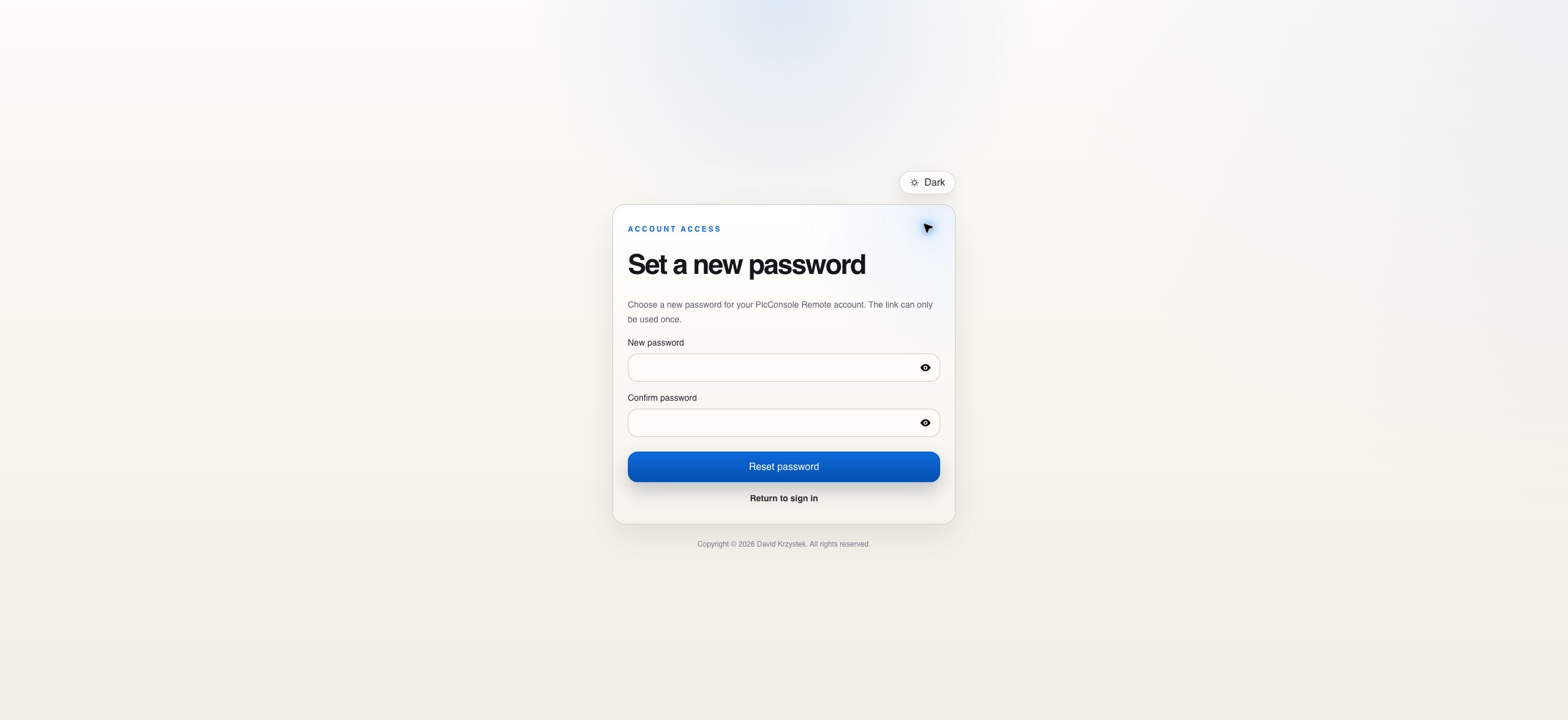
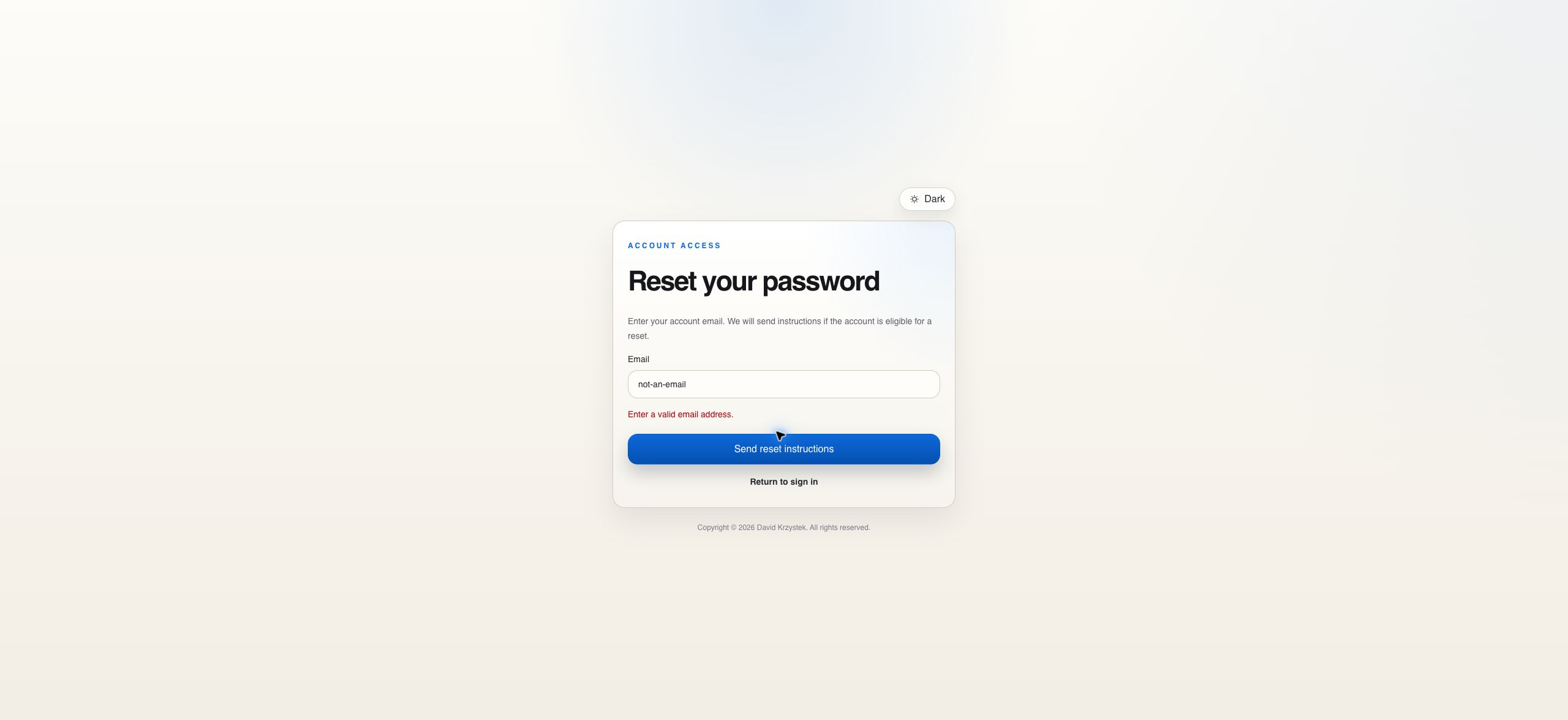
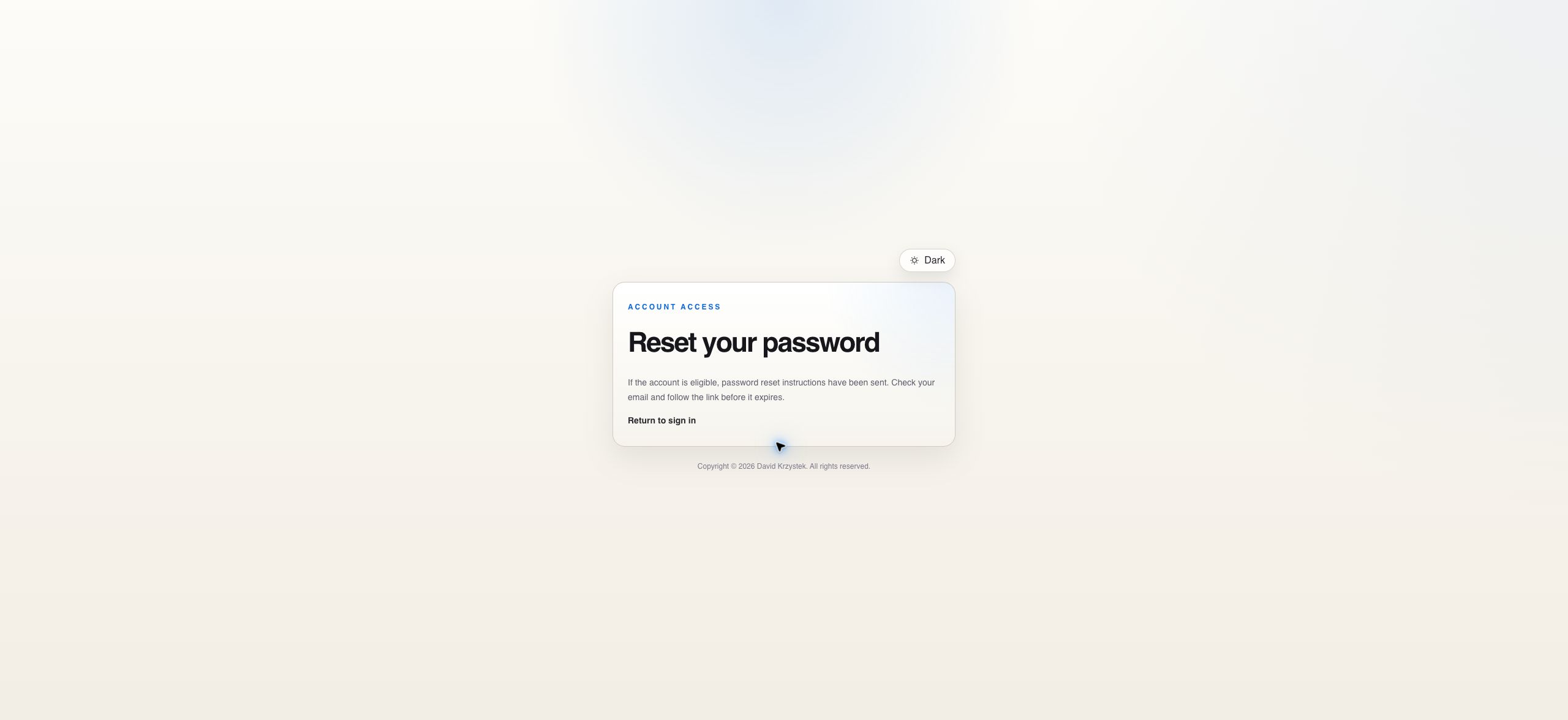
Password Recovery

Recover access without revealing account existence

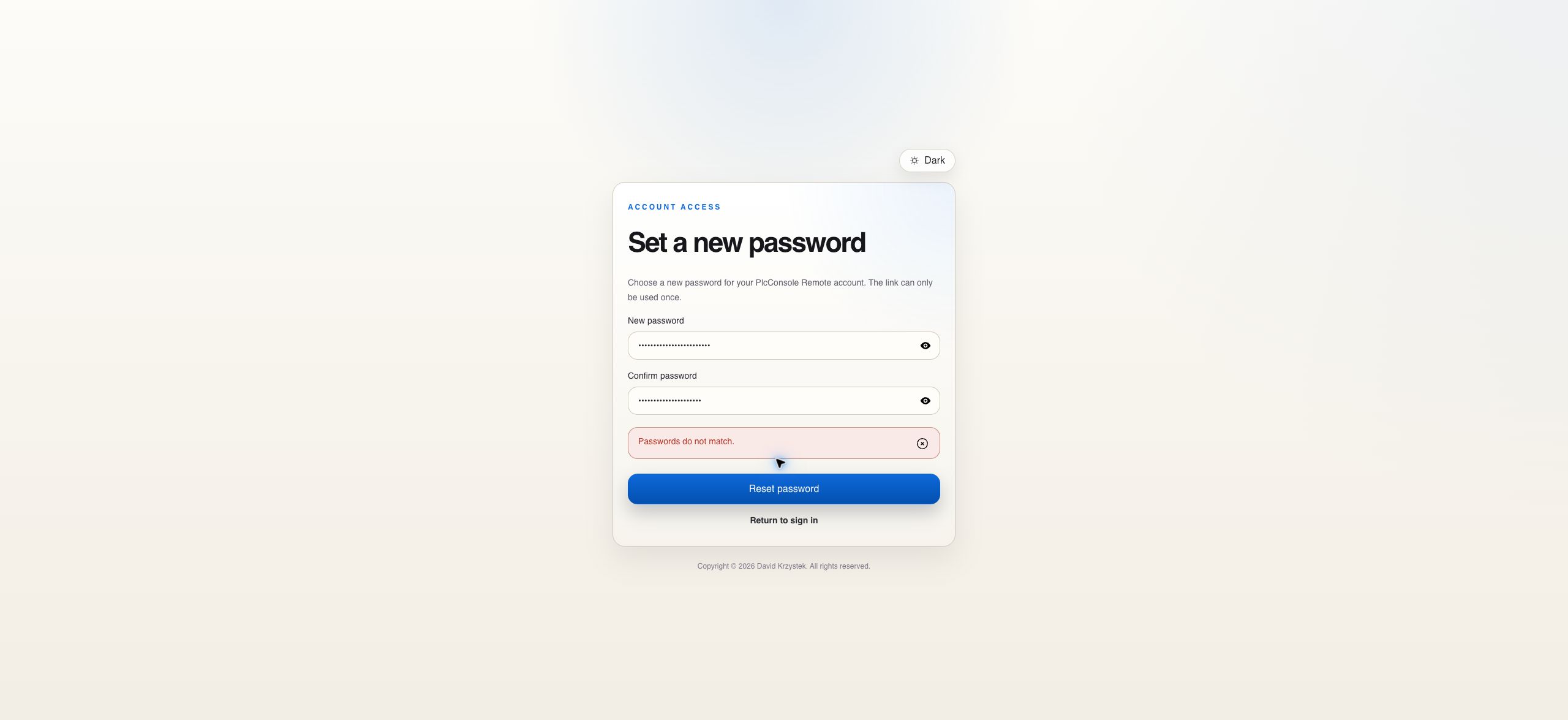
Use this public flow when the current password is unavailable.

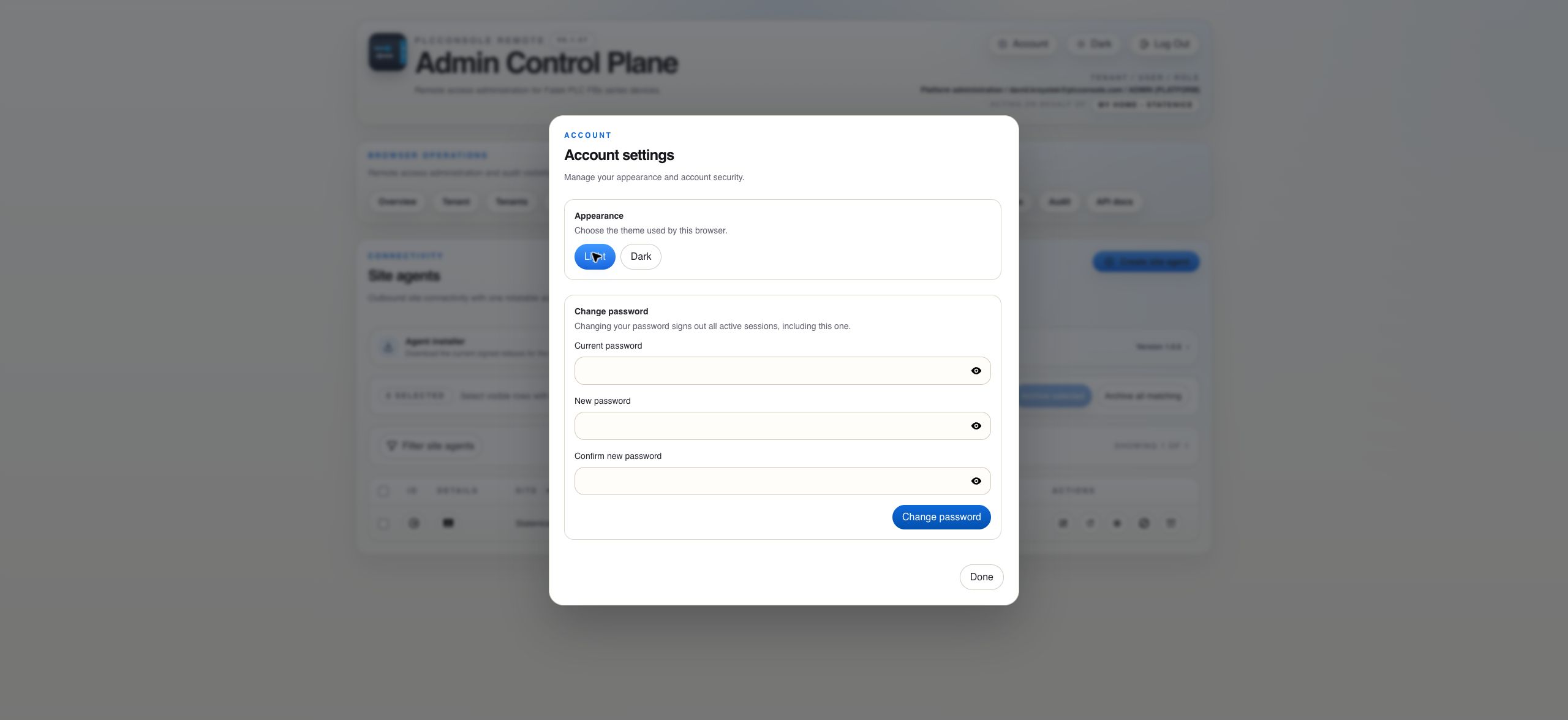
Account Settings

Change a known password from the active session

Session Guide

Know what the session carries and when it ends

A successful sign-in creates an independently revocable human session. The browser uses short-lived access tokens while refresh-token rotation maintains the longer session.

SituationExpected behaviorUser action
Normal access-token expiryThe browser refreshes the authenticated session while its refresh token remains valid.Continue working. Sign in again only if the session can no longer be renewed.
Log outThe current browser session is revoked.Sign in again to create a new session.
Password changedAll active sessions are revoked, including the one used to change the password.Return to sign-in and use the new password.
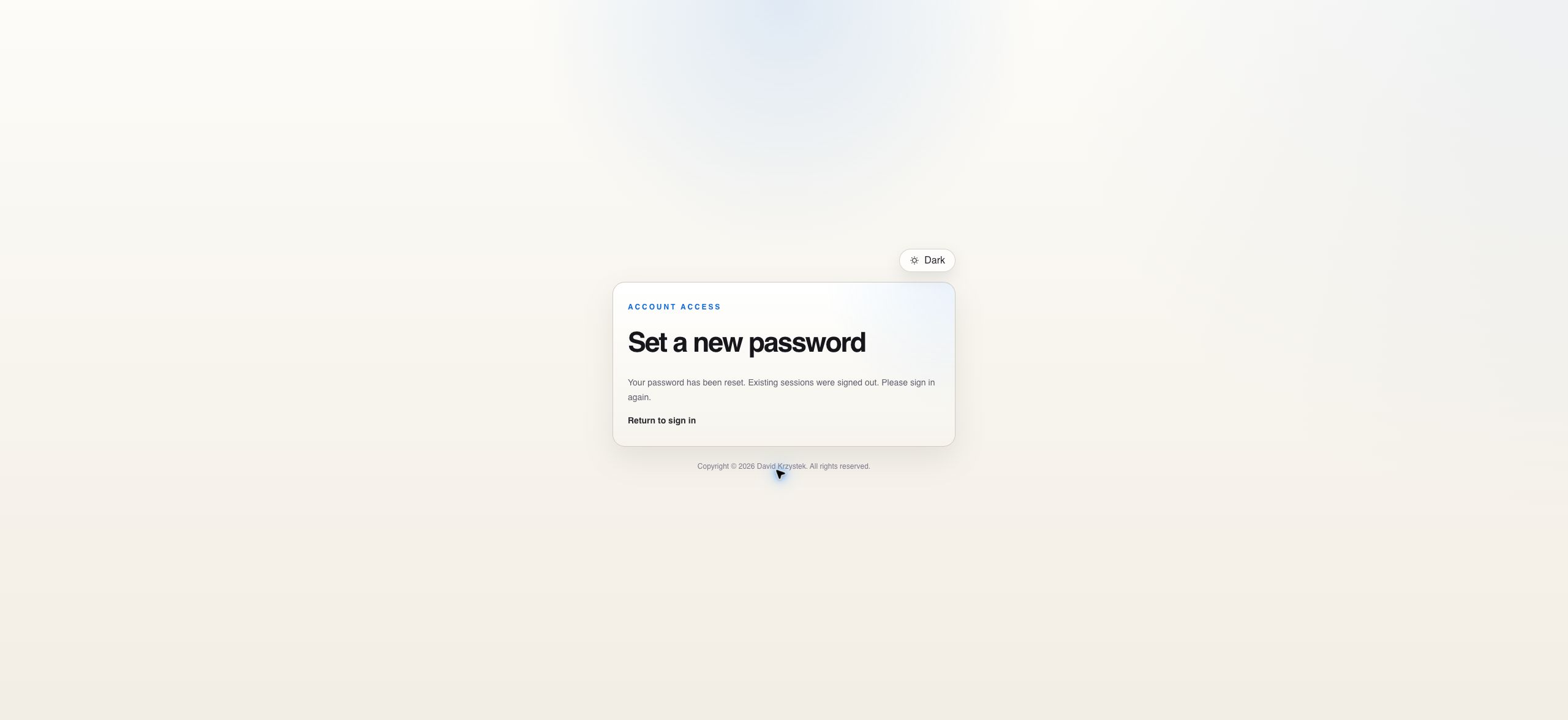
Password reset completedThe single-use reset token is consumed and existing sessions are revoked.Sign in with the replacement password. Do not reuse the reset link.
User or tenant disabledAccess stops until the responsible administrator restores an allowed lifecycle state.Contact the tenant or platform administrator rather than repeatedly retrying credentials.
Tenant context matters: the identity line states who is signed in. Acting on behalf of appears only when a platform administrator has entered a different tenant context. Confirm both before changing tenant-scoped data.
Password Decisions

Choose change or recovery based on what you know

Use Account when the current password is known

  1. Open Account from the application header.
  2. Enter the current password.
  3. Enter and confirm a new password between 10 and 64 characters.
  4. Resolve any framed validation or authentication notice.
  5. Submit once and expect to be returned to sign-in.

Use Forgot password when access is lost

  1. Open Forgot password? from the sign-in screen.
  2. Enter a syntactically valid email address.
  3. Read the generic confirmation; it intentionally does not reveal whether the account exists.
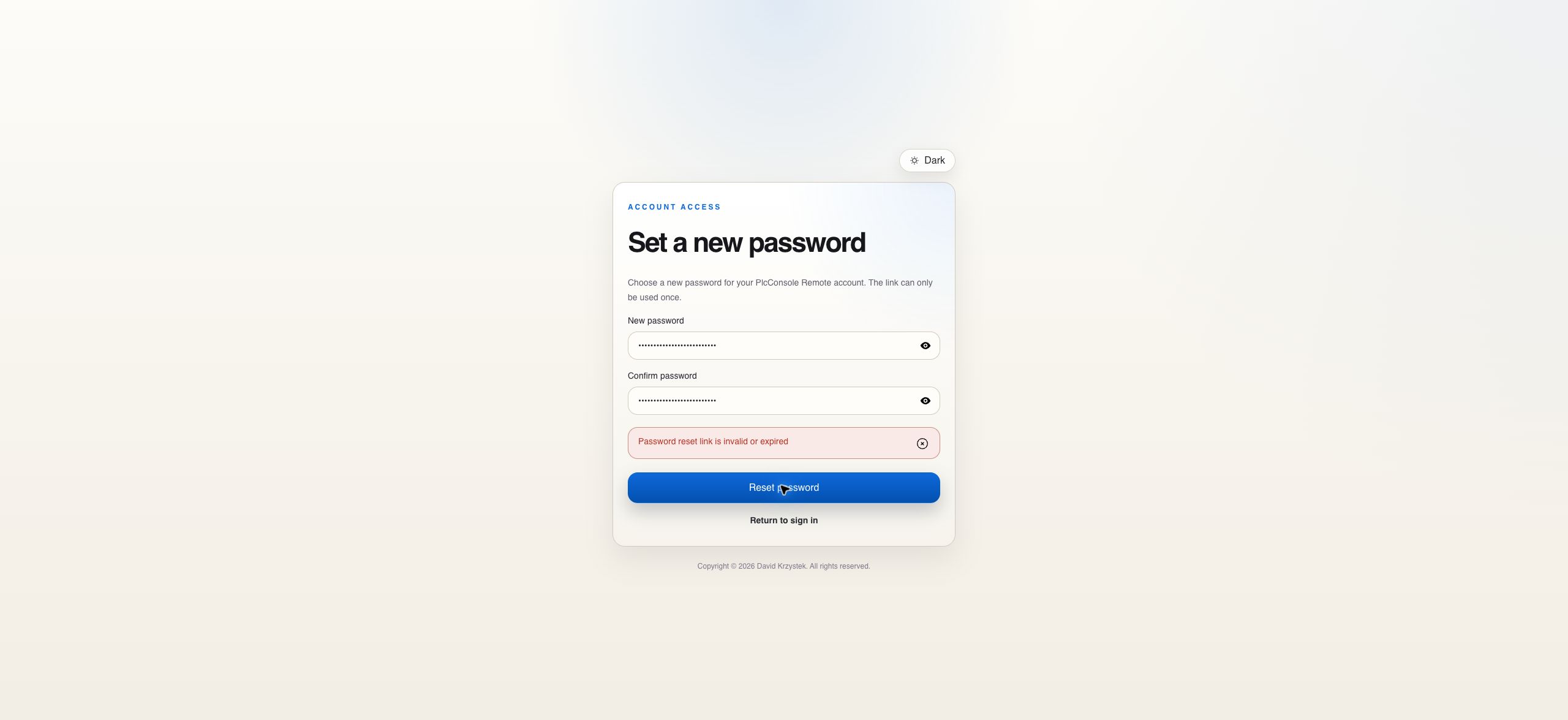
  4. Open the newest reset link and set the replacement password.
  5. Sign in again after the successful reset.
If an error repeats: read the notice rather than submitting continuously. Wrong-password and reset attempts are application-rate-limited. An expired, used or malformed link cannot be repaired and requires a new recovery request.
Troubleshooting

Separate identity, session and authorization problems

Sign-in rejected

Verify the complete email address and password once. The generic response does not identify which value is wrong. If the password is unknown, use recovery instead of repeated guessing.

Signed in, screen missing

This is usually authorization or tenant context, not authentication. Confirm the displayed role and tenant, then ask an administrator to inspect the relevant permission assignments.

Unexpected tenant data

Stop before making changes. A platform administrator should return to the tenant directory and switch to the intended tenant context.

Theme did not follow the account

The header theme control persists the preference for the signed-in account. Allow the application to load the profile before deciding that the preference was lost.