PlcConsole
Data Logger Manual · Alerts

Notifications

Set up a delivery channel, design the message, and define exactly when an incident opens, stays open and resolves.

Choose a destination

A channel defines where a message goes and how Logger formats or sends it. Several rules can reuse one channel. Channel management requires tenant-level permission. Rule authors can select enabled channels without gaining access to their credentials.

  1. Open Notifications → Channels → New channel. Give the channel a name that identifies its audience or integration and choose an available type.
  2. Set the destination and any provider settings, preview the message, then save and enable the channel. Available types depend on the installation.
  3. After enabling it, use Send test notification with an approved destination and open View test result. A test creates a real delivery job. Verify receipt separately from provider acceptance.
ChannelWhat you supplyWhen to use it
EmailUp to ten comma-separated recipients and an optional template. The installation provides the SMTP connection.Send a formatted incident summary to an operations mailbox or team.
Microsoft Teams or SlackA Teams Workflows URL or Slack Incoming Webhook URL. Assign a backup owner for a Teams workflow.Post a card or message to a team already working in chat.
Twilio SMS or Vonage SMSProvider account credentials and sender/recipient details in the provider's format.Send a short message to an approved number. Check segment count because a long or Unicode message can consume additional segments.
Twilio WhatsAppProvider credentials, sender and recipient, and the Content SID of an approved WhatsApp template.Send a provider-approved message with mapped placeholders.
Custom HTTPA public HTTPS receiver, method, parameters, JSON where applicable and any required authentication.Send structured event data to a service the tenant operates or has approved.
Email

Configure a mailbox and preview its message

  1. From Notifications → Channels → New channel, choose Email, give the channel an audience-specific name and add up to ten comma-separated recipients. The installation supplies the SMTP connection and sender.
  2. Open Customize message. Put the status and rule in the subject, for example [{{event.status}}] {{rule.name}}. The context line can use {{event.context}} for the location, PLC and event time. The body can tell the recipient what to check. Logger formats the saved plain text as HTML and provides a plain-text alternative.
  3. Choose whether to include measurement details and the incident link. The link opens an authenticated Logger page. Use Restore default to reinstate the built-in message.
  4. In Preview with example data, switch between an opening, recovery, reminder, missing-data or test message. Check both formatted email and plain text. A test example has no associated incident.
  5. Save and enable the channel. If you are responsible for verifying delivery, send a test to an approved mailbox. Inspect View test result in Logger and verify the actual recipient received it. Delivery audit retains the submitted subject and message for the attempt.
Template scope. Every rule assigned to the channel uses this template. Preview renders example data without sending.
Custom HTTP

Send a structured event to an HTTPS receiver

  1. Choose Custom HTTP and enter your approved HTTPS receiver. The example https://events.example.com/plcconsole is a placeholder. Use the destination field for the URL path and URL parameters for its query values.
  2. Select GET for a request without a body or POST or PUT for JSON. For example, set a parameter called event to {{event.type}} if the receiver routes requests by event type.
  3. For a JSON body, enter a template like the one below. The exact {{measurements}} placeholder in a string value renders as an array. {{incident.id}} renders as null for a channel test. Placeholders embedded in longer strings render as text.
  4. Choose the method agreed with the receiver under Authentication. Options include None, Basic, Bearer, API key and HMAC signature. Enter secrets in the corresponding credential fields or use a secret custom header where required.
  5. Open Preview with example data and verify the method, URL, parameters, JSON types and expected event fields. Save and enable the channel when the receiver is ready. After an authorised test, compare the entry in Delivery audit with the receiver's record.
{
  "event": "{{event.type}}",
  "eventId": "{{event.id}}",
  "incident": "{{incident.id}}",
  "measurements": "{{measurements}}"
}

Retries keep the same event ID. If the same receiver can see the message more than once, use the event ID as an input to deduplication. Check provider acceptance and the receiver's own processing separately.

Chat and messaging providers

Configure Teams, Slack, SMS or WhatsApp

Use the channel type enabled for your installation and credentials from your own provider account or workspace.

Microsoft Teams and Slack

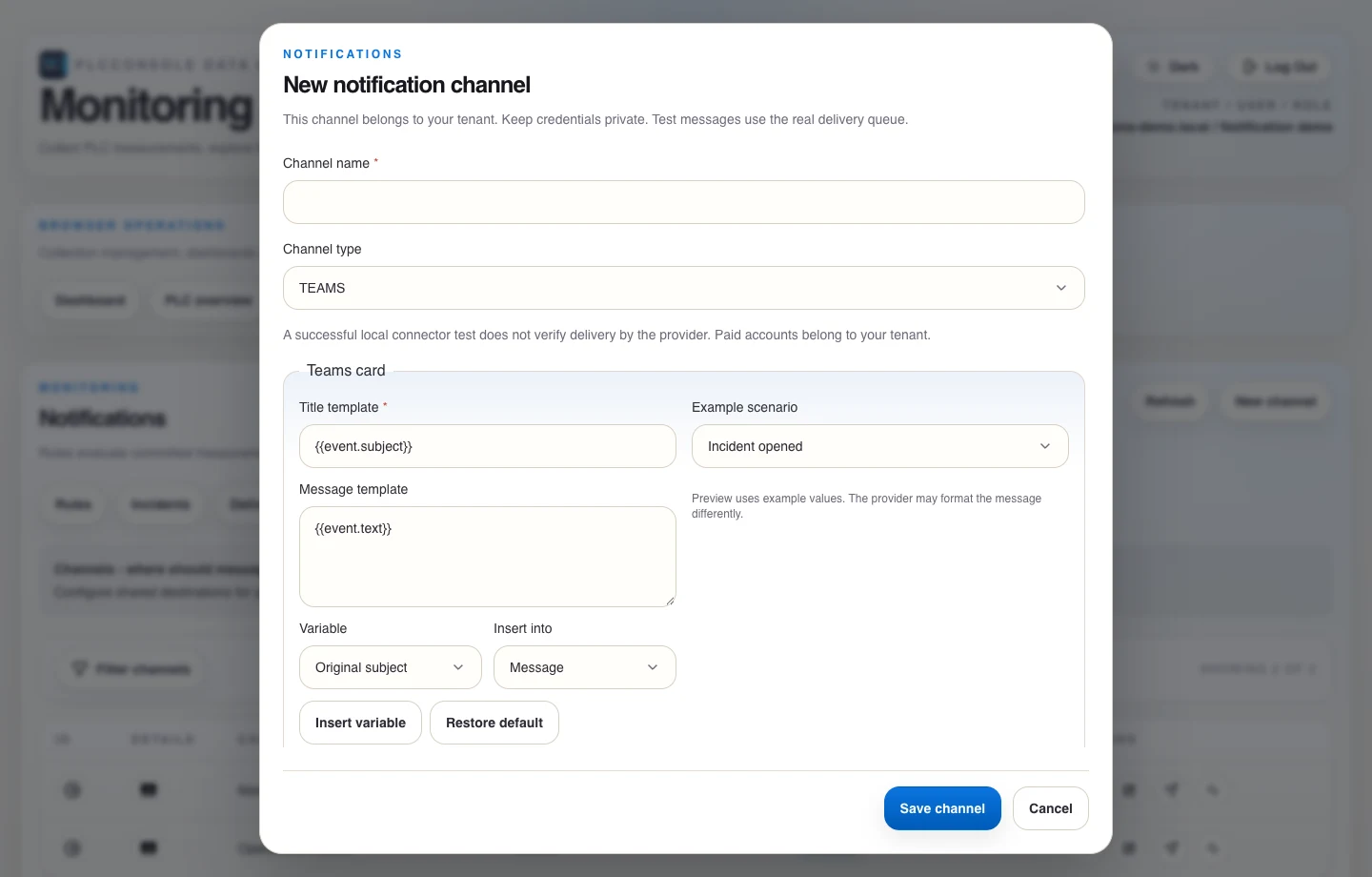
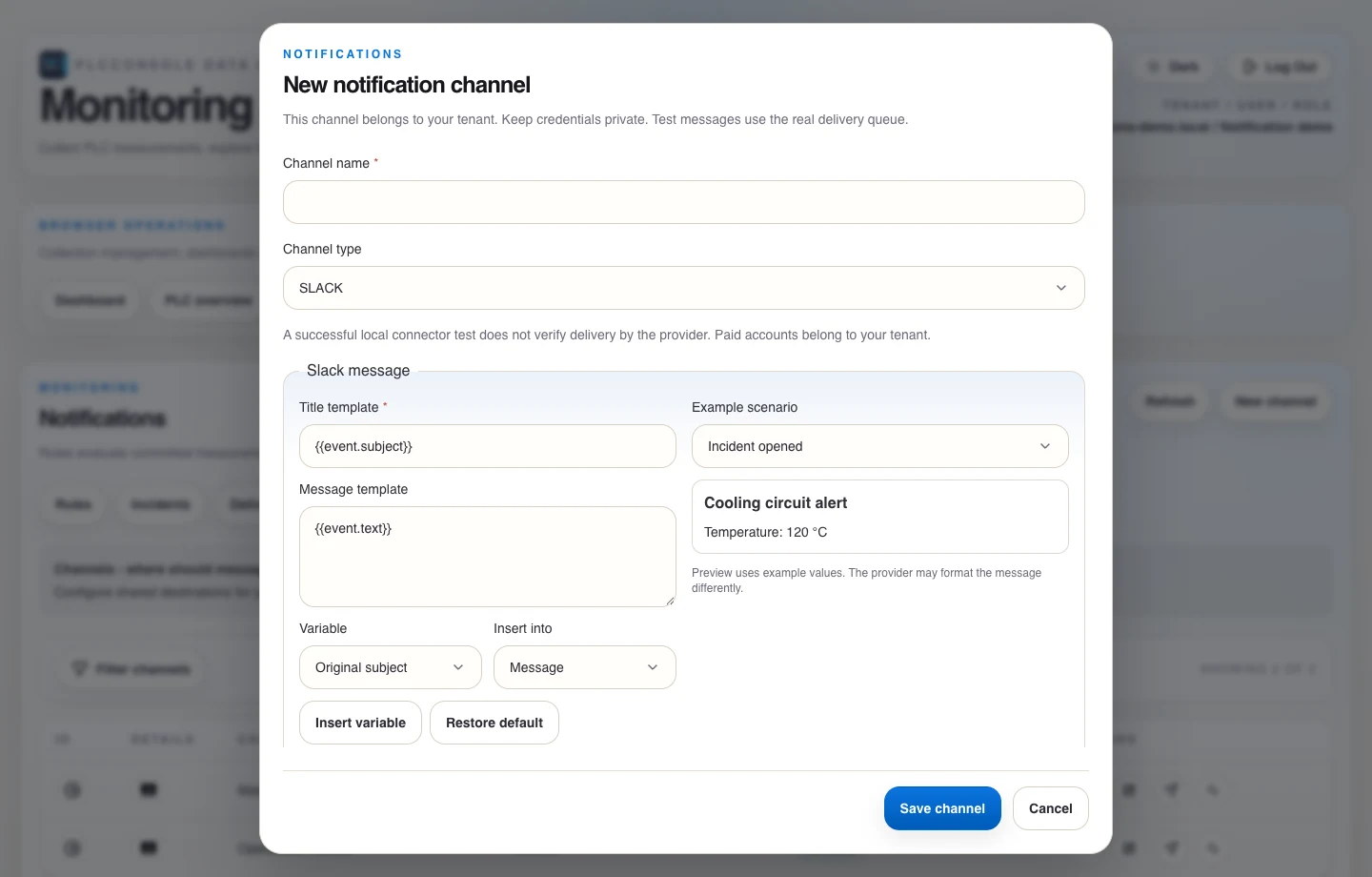
For Teams, use the secret URL from a Teams Workflow and assign a backup workflow owner. For Slack, use the secret Incoming Webhook URL for the target workspace channel. In Teams card or Slack message, customise the title and message using event, rule and measurement variables. A blank message yields a title-only notification. Check an actual authorised test in the target chat to see its rendering.

Twilio SMS and Vonage SMS

For Twilio SMS, enter the Account SID, Auth Token and supported sender and recipient numbers in international form with a leading +. For Vonage SMS, enter the API key, API secret, sender and international recipient number without the leading +. Vonage also accepts an alphanumeric sender of 1–11 letters or digits where the provider allows it.

Use SMS message to set the text and review the GSM-7 or Unicode segment estimate. Put the status and rule early, so the message still identifies the incident if shortened. Provider billing follows your own account, and segmentation or retries can increase message charges.

Twilio WhatsApp

Enter the Twilio Account SID, Auth Token, sender and recipient, and the approved WhatsApp template's Content SID. Choose Load approved template, then map each placeholder to a Logger variable or keep its provider default. Check example text and the variable overrides. Twilio renders template buttons and media. Delivery audit records the submitted Content SID and overrides when accepted.
Define the condition and recovery

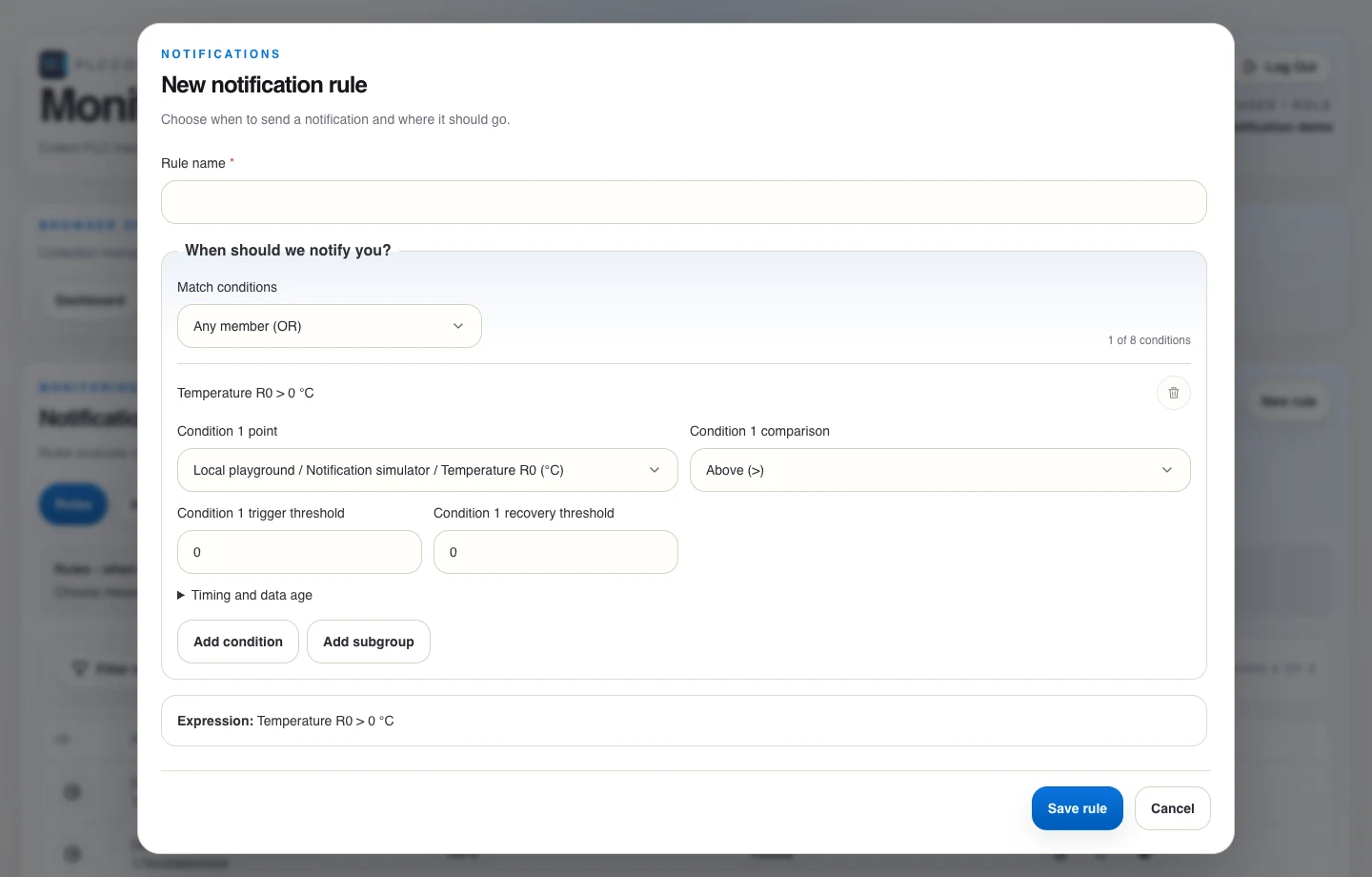
  1. Open Rules → New rule. Name the rule, choose an authorised point such as Temperature R0 and pick a condition supported by its type.
  2. Choose a trigger and recovery threshold where required. Open Timing and data age for the hold time, recovery delay and permitted age of evidence. Compare those settings with the collection interval.
  3. Assign one or more enabled channels. Under Additional rule settings, set severity and, if the audience needs repeated updates on an ongoing incident, a reminder interval. Review the condition summary and enable the rule.
OperatorOpening evidenceRecovery evidence
Above / BelowA numeric value strictly above or below the trigger threshold.A valid value reaches the clear side of the recovery threshold. Use a separate clear threshold to avoid repeated open/close cycles near the trigger.
OutsideA numeric value falls below the lower or above the upper trigger bound.The reading returns within the configured clear bounds inside the trigger range.
Equal / Not equalThe numeric reading equals or differs from the exact target. Choose a range condition when tolerance matters.The reading no longer meets the original comparison.
True / FalseA valid Boolean reading is ON or OFF, respectively.A valid reading of the opposite state.
No dataFresh readings are missing for an active, authorised collection long enough to qualify.A valid fresh reading returns. Paused or unauthorised collection suspends evaluation.
Example with hysteresis. Set Temperature R0 to open above 80 °C with a 5-second hold and clear at 75 °C or lower. The first valid reading above 80 °C starts the hold. A subsequent qualifying reading at or after the deadline confirms the incident. If you also set a recovery delay, a valid clear sample starts it and a later clear sample must confirm it. A failed or expired value cannot confirm recovery.

Set maximum data age to cover at least two collection intervals. For example, a point read every 5 seconds needs at least 10 seconds. The age limit determines whether older evidence can still count. The hold and recovery settings determine how long a valid state must persist.

Rule logic

Combine AND and OR conditions

  • Any member (OR). One confirmed condition opens the incident. Every branch must be confirmed clear to resolve it.
  • All members (AND). All conditions must be confirmed active at the same time. Their readings can have different timestamps if the evidence is still valid. One confirmed clear branch can resolve the incident.
  • Subgroups. Use Add subgroup to give a set of conditions its own AND or OR. A rule can have several subgroups side by side below the main group. Each subgroup contains conditions. Use up to eight conditions on distinct points across the whole rule.
  • Unknown evidence. Pending conditions do not qualify. Recovering conditions remain active until recovery is confirmed. If the expression is unknown, an open incident stays open and reminders pause. Each condition retains its own timing settings.

Example A · AND at the rule level, OR inside the subgroup

Pump alarm M0 is ON AND (Temperature R0 > 80 °C OR Pressure R1 > 8 bar)

  1. Set Match conditions to All members (AND). Add Pump alarm M0 at the main level and choose True.
  2. Select Add subgroup, name it Operating limits and choose Any member (OR) inside it.
  3. Use the subgroup's Add condition to add Temperature R0 above 80 °C, with recovery at 75 °C, and Pressure R1 above 8 bar, with recovery at 7 bar. To reuse an existing condition, edit it and choose Move condition to.
  4. Read the expression at the bottom and verify the placement of the parentheses. Choose a channel and check the timing on each condition before saving. The rule uses the Boolean alarm bit as recorded.

With the alarm bit ON, confirmed high temperature alone can open the incident. If temperature clears while pressure still qualifies, the subgroup stays active. If the bit is confirmed OFF, the main AND can resolve the incident. If the available readings leave the expression unknown, the incident stays open.

Example B · OR at the rule level, AND inside the subgroup

Pump alarm M0 is ON OR (Temperature R0 > 80 °C AND Pressure R1 > 8 bar)

Keep the same three conditions. Change Match conditions at the top to Any member (OR) and the subgroup's operator to All members (AND). The alarm bit can now open an incident by itself. When it is OFF, both limit conditions must be confirmed active for the subgroup to match.

How the same confirmed conditions evaluate in each example
Confirmed inputsExample AExample B
Alarm ON, both limits clearNo matchMatch
Alarm ON, only temperature highMatchMatch
Alarm OFF, both limits highNo matchMatch
Alarm OFF, only temperature highNo matchNo match

The table uses confirmed conditions after timing and recovery checks. In Example B, if the alarm is OFF, temperature is confirmed high and pressure is unknown, the rule result is unknown. An existing incident stays open while the result is unknown.

Incident lifecycle

Follow opening, reminders and resolution

Incident lifecycle A confirmed match opens an incident. If configured, reminders can occur while it stays open. Confirmed recovery resolves it. An administrative action can instead close it. No open incidentOPENRESOLVEDCLOSED Confirmed matchReminder due Confirmed recoveryAdministrative close
Incident state changes and reminder events.
  1. OPENED. The rule first qualifies and the incident becomes Open. Its event records the rule version, the triggering condition and the observation time. Compare that time with the event time to see when Logger reported it.
  2. REMINDER. In the rule editor, open Additional rule settings → Reminder interval (seconds). The minimum is 300 seconds. The first reminder is due one interval after opening, and each later reminder is due one interval after the previous reminder. Each creates a new event. Unknown evidence keeps the incident open and suppresses reminders while the result stays unknown.
  3. RESOLVED. A confirmed recovery ends the incident and records recovery evidence. Future reminders stop. Closed is an administrative outcome, for example after a rule change or archival. Use the recorded reason to distinguish it from measured recovery.

For example, an incident that opens at 14:00 with a five-minute reminder interval can send reminders at 14:05 and 14:10 while it qualifies. If recovery confirms at 14:12, a resolution event follows and the 14:15 reminder is no longer due.

Read the incident detail

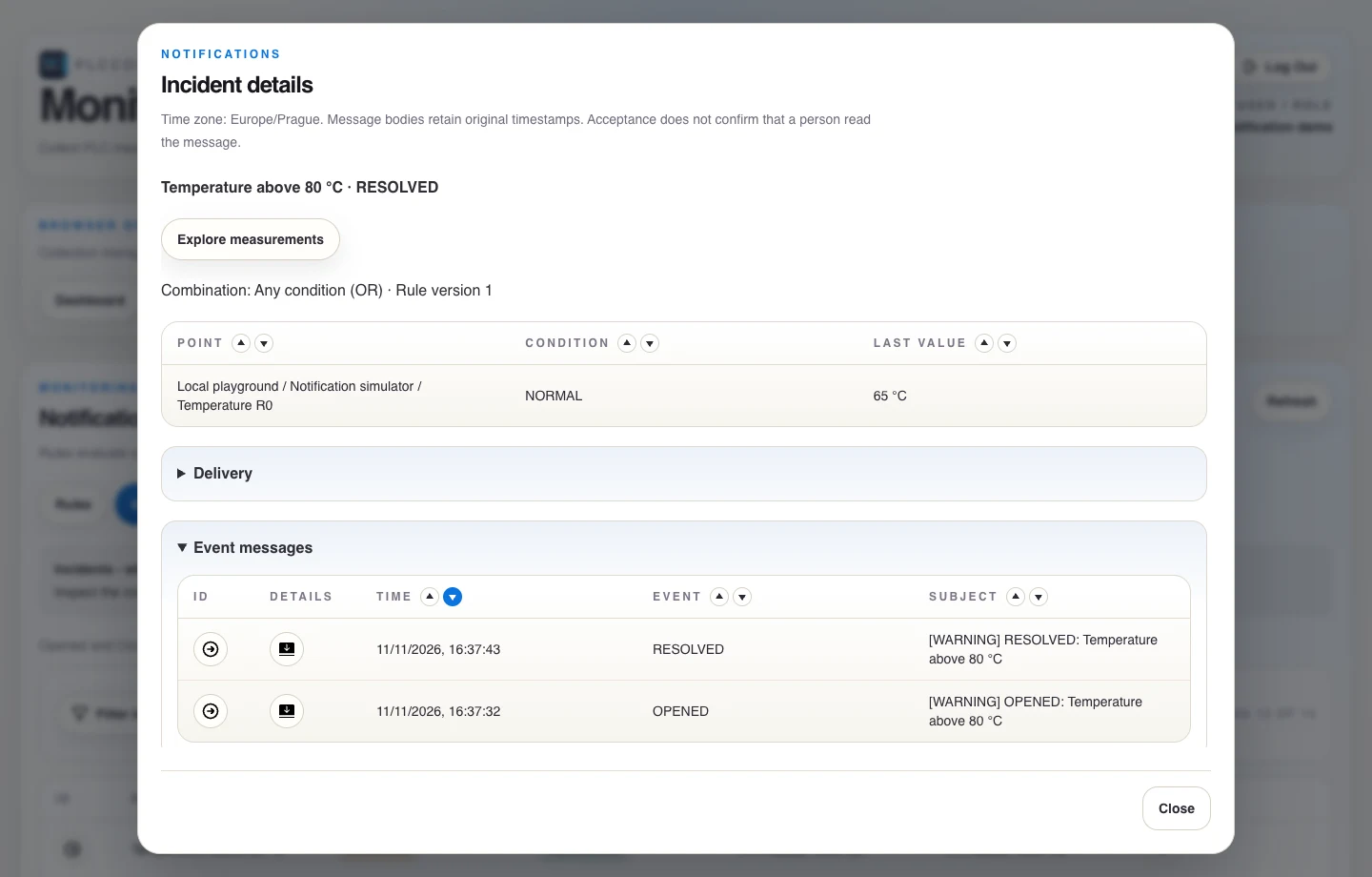
Open Notifications → Incidents and select Incident details on the relevant row. For older incidents, change Period to All stored incidents or filter by date. Check the rule version, condition states, reported values and observation times. Use Explore measurements to open the associated readings around incident opening.

Expand Event messages to see the sequence of openings, reminders and recovery messages. Expand an event row for its original message. Open Delivery to check what happened for each target channel. Both sections start with five rows per page and can be sorted or paged independently.

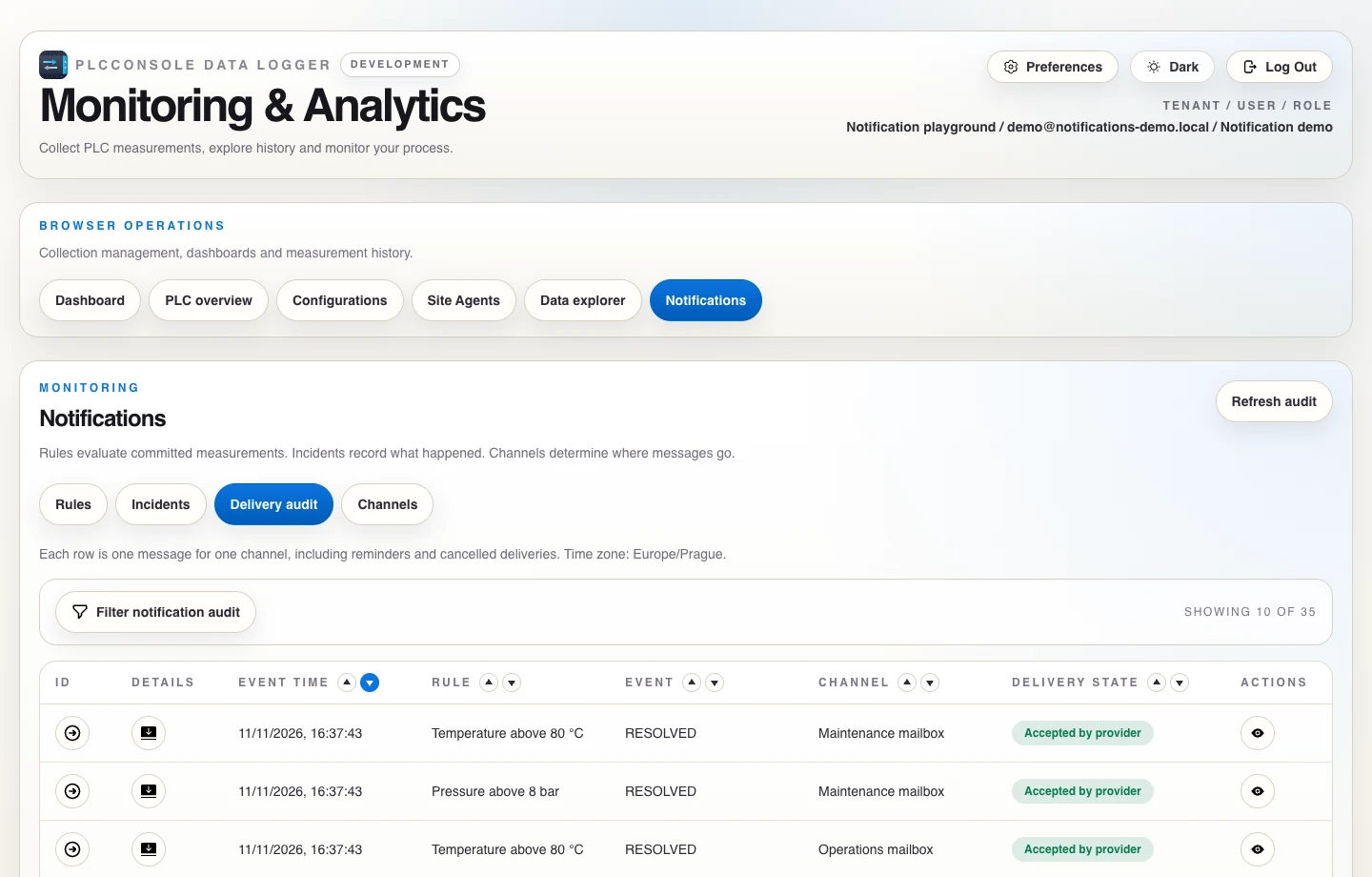
Trace a delivery and its attempts

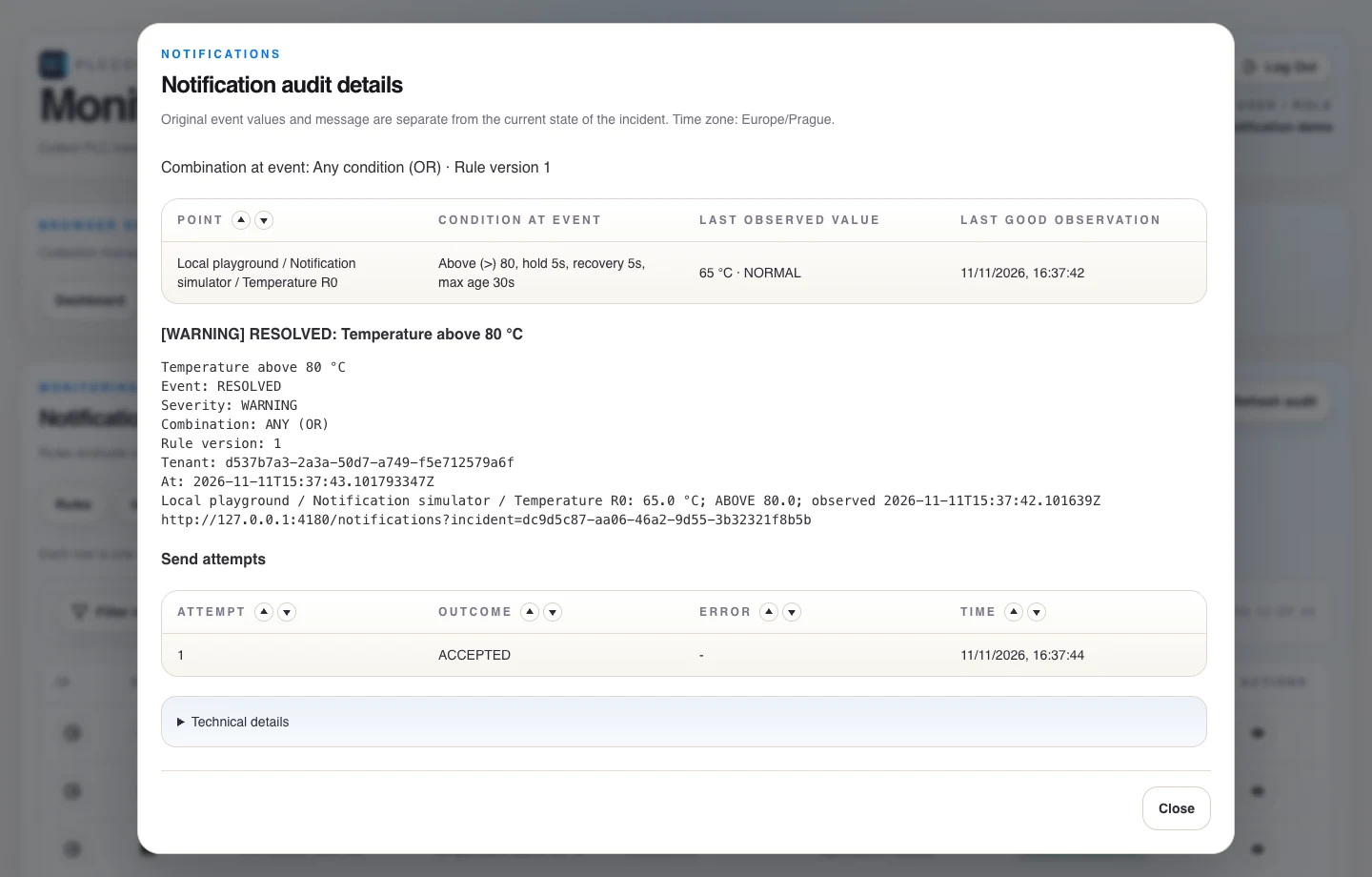
  1. In Delivery audit, filter by rule, event time or event type. One event sent to two channels produces two rows with the same event ID. Each channel has its own outcome and count in Send attempts.
  2. Open the row detail to see the original event evidence and message, then scroll to Send attempts. Check the attempt number and time, result and error code. Use the IDs under Technical details when comparing evidence across rows or contacting support.
  3. A reminder creates a new event and delivery rows. A retry adds another attempt to the same delivery row. For example, if email is accepted after two attempts and Slack is accepted after one, both rows refer to the same event, and retrying email has no effect on Slack.
Delivery attempt states Pending work moves to sending. A send can be accepted, fail permanently, or move to retry. A retry returns to sending. Queued or retrying work can also be cancelled. PENDINGSENDINGACCEPTEDRETRYFAILED Next attempt becomes due
Typical delivery outcomes. Pending or retrying work may also be cancelled.
  • Pending / Sending. Work awaits a worker or a send is in progress. A queued delivery may still show zero attempts.
  • Retry. Logger automatically tries again after a retryable error. The usual first delay is 30 seconds and subsequent waits grow. A delivery allows up to eight attempts including the initial send. Provider guidance and sending limits can affect the schedule.
  • Accepted. SMTP or the provider API accepted the request. Confirm receipt separately when testing. An attempt with an unknown result can occur if the worker could not confirm the outcome.
  • Failed / Cancelled. A permanent error or exhausted retry policy can end delivery as Failed. Disabling the channel or a stale reminder can cancel queued work. Fixing channel settings does not requeue a finished delivery, and a channel test creates a separate event.
When a rule stops evaluating. Check whether collection is paused, the point definition changed or Remote access was removed. Review the rule after restoring a valid source. A changed point definition requires a new rule revision.